

Building a Search Connector
Build a Happeo search connector that authenticates requests, integrates with a third-party search API, and returns results in Happeo’s expected format.
A search connector is an App in Happeo to extend the Federated Search functionality. Search connectors can be written as a Custom App or submitted to the Marketplace.
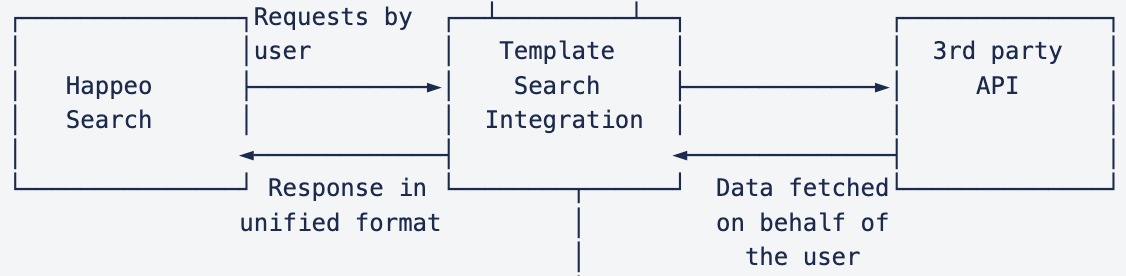
In this guide, we present a step-by-step guide to write a search connector while explaining its architecture.
Whenever a user searches on Happeo, the requests are forwarded to the search connector implementation. The Happeo search UI expects the results from a search connector in a particular format. In most cases the search connector is a wrapper around a third party search API. In addition, the search connector also has to make sure the requests come from an authenticated source (i.e. Happeo) as well as perform user authentication with the third party search API and cache the user authentication token.
Create an App
Before beginning the development of the search connector, it is advised to create a search App listing in Happeo.
There are two ways to create a Search App via the Admin UI (in the App sidebar menu).
- Custom App
If you intend to keep the search connector private to your Happeo instance, create a Custom App.
To create a custom search app, go to Admin Settings > Apps > Custom Apps > Add Custom Widget > Custom App, and put the target section as search. - Marketplace App
If you would like to share the search connector with other Happeo customers, you can submit a Marketplace App. When a Marketplace app is created, it is sent to review to Happeo before it is published in Happeo’s app marketplace.
To create a Marketplace App, go to Admin Settings > Apps > Custom Apps > Add Custom Widget > My Marketplace Submissions > Create App, and put the target section as search and follow the flow.
The App configuration is identical in Custom and Marketplace Apps as seen
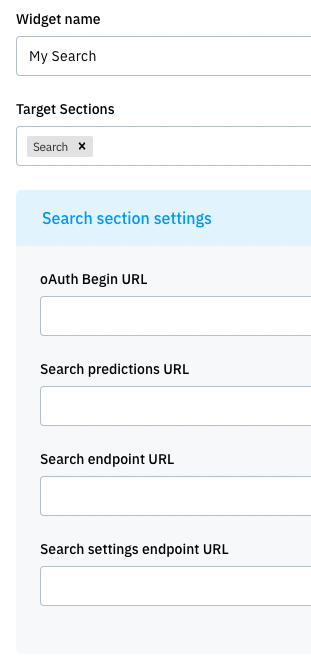
The search settings will be explained later in detail. For now,
- OAuth Begin endpoint - This endpoint is called to start the OAuth flow to authenticate the user with the third party service (if not authenticated).
- Search Predictions endpoint - This endpoint is called by the UI when the user is typing into the search bar. The response expected is a list of suggested results.
- Search endpoint - This endpoint is called by the UI when the user types into the search bar and presses enter to see the results page. The response expected is a list of search results along with filters.
- Settings endpoint -This endpoint is called by the UI when the search UI is initialized. Based on this response UI will build the navigation menu.
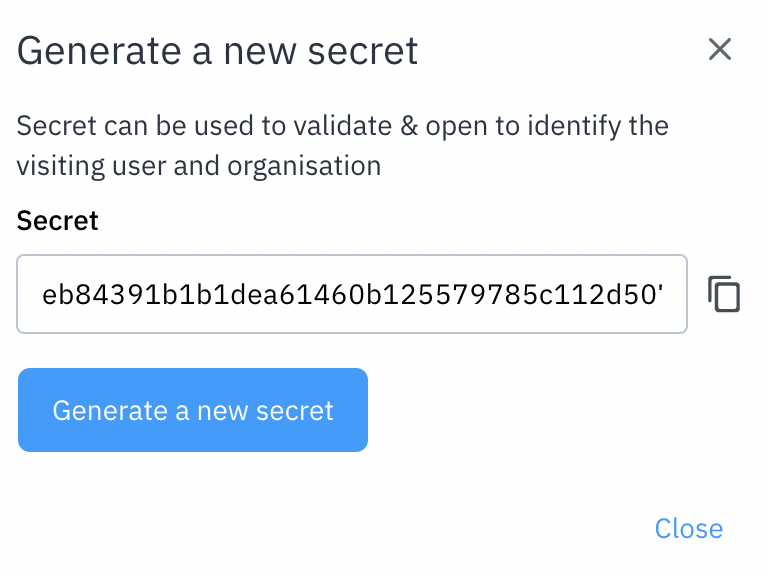
When you save a search App, it will also generate a secret. Please save this secret value into a secure location. This secret is used to sign all the tokens sent towards the search connector by Happeo.
Search Endpoints
Predictions Endpoint
The predictions endpoint will be called when the user types something in the Happeo Search bar (but hasn’t pressed enter).
Request:
A GET request is sent to the endpoint with the search query in the URL parameter named query. Along with this, the Happeo token is passed in the authorization header. The endpoint must verify the token as explained in the authentication section and return the suggestion results.
Following is an example query:
GET /suggestions?query=example HTTP/2
Host: mysearch.example.com
authorization: Bearer <Happeo token here>
Response:
The expected response is a list of items to be displayed to the user under the search bar. The response json must have the items attribute as an array. Each item in the array must contain the attributes - value specifying the item’s heading, description specifying the longer description, id specifying the id of the item, icon specifying the icon url of the item, and url specifying the url of the item.
Following is an example response:
{
  "items": [
    {
      "value": "Search result 1",
       "description": "Long description of search result 1",
       "id": "55ca2bb",
    "url":"https://mysearch.example.com/items/55ca2bb"
    }
  ]
}
A 401 error must be returned if the Happeo token validation fails or if the user is not authenticated against the third party search API.
Search Endpoint
The search endpoint is called when the user presses enter after inputting the query in the Happeo search bar or when viewing the search result page or when applying filters to the search results.
Request:
Similar to the predictions endpoint, a GET request is sent to the endpoint with the search query in the URL parameter named query. In addition to the query URL parameter, the pageNumber and pageSize parameters are sent specifying the actual page number and the number of items expected in each page, respectively. Along with this, the Happeo token is passed in the authorization header. The endpoint must verify the token as explained in the authentication section and return the search results.
Following is an example query:
GET /search?query=example&pageNumber=3&pageSize=10 HTTP/2
Host: mysearch.example.com
authorization: Bearer <Happeo token here>
Response:
For Happeo UI to display results correctly on the screen, the response from the endpoints should follow a unified response format as follows:
{
  "pageNumber": number, // Current page number
  OR
  "nextPageToken?": string // Some endpoints may instead return nextPageToken cursor.

  "pageSize": number, // Number of items in one page, also known as max results
  "total": number, // Total amount of results
  "items": item[], // List of result items, ex. Jira tickets
  "filters": filter[] // List of all available filters.
}
If pagination is available pageNumber or nextPageToken can be returned with the response. More details about supported pagination methods are in the pagination section.
Each item in the “items” array must have the following format:
{
    "value": string // identifier ex. Jira ticket code UN-123
    "description": string,  // long description
    "id": string,   // id of the item
    "icon": string, // [optional] icon URL
    "url": string,  // actual url of the item
    “metaInfoItems”: [string] // array of metadata items
  }
The string items in the metaInfoItems are displayed on the metadata line of the search result card. Each item supports the following HTML tags - strong, a, img (only 18px by 18px images).
If search integration supports filters, the filter field can be used to display different filtering options.
Example of one filter:
{
      "key": "issueStatus", // Unique key that can be used when searching ex. /api/search?issueStatus=...
      "label": "Issue Status", // Filter display name
      "type": "checkbox", // Filter type.  Only checkbox type supported at this point.
      "options": [ // Array of all available filter options
        {
          "key": "10000", // key used with requests
          "name": "To Do" // display value
        },
        {
          "key": "10001",
          "name": "In Progress"
        },
        {
          "key": "10002",
          "name": "Done"
        },
        {
          "key": "10004",
          "name": "Custom"
        }
      ]
    }
Happeo UI can then display the filters correctly and use them with search endpoint: /api/search?{filter.key}={option.key} ex: /api/search?issueStatus=10002
In general, search endpoints should support and handle both single and array of multiple parameter values. For example, issue Type may be a single value or multiple values: issueType=10002 or issueType=['10002', '10003'].
Pagination
Currently supported pagination methods that are supported:
- pageNumber(offset) based
- nextPageToken(cursor) based
pageNumber based pagination
If an external service uses offset based pagination, then pageNumber should be calculated by using pageSize and offset value. offset = page * pageSize
{
  "pageNumber": 0,
  "pageSize": 5,
  "total": 50,
}
The URL parameters in the request would be: api/search?pageSize=5&pageNumber=0
nextPageToken based pagination
If an external service uses cursor based pagination, use the nextPageToken field for the cursor value.
{
  "nextPageToken": "gaw3b21o4i5p123",
  "pageSize": 5
}
The URL parameters in the request would be: /search?pageSize=5&nextPageToken=gaw3b21o4i5p123
Settings Endpoint
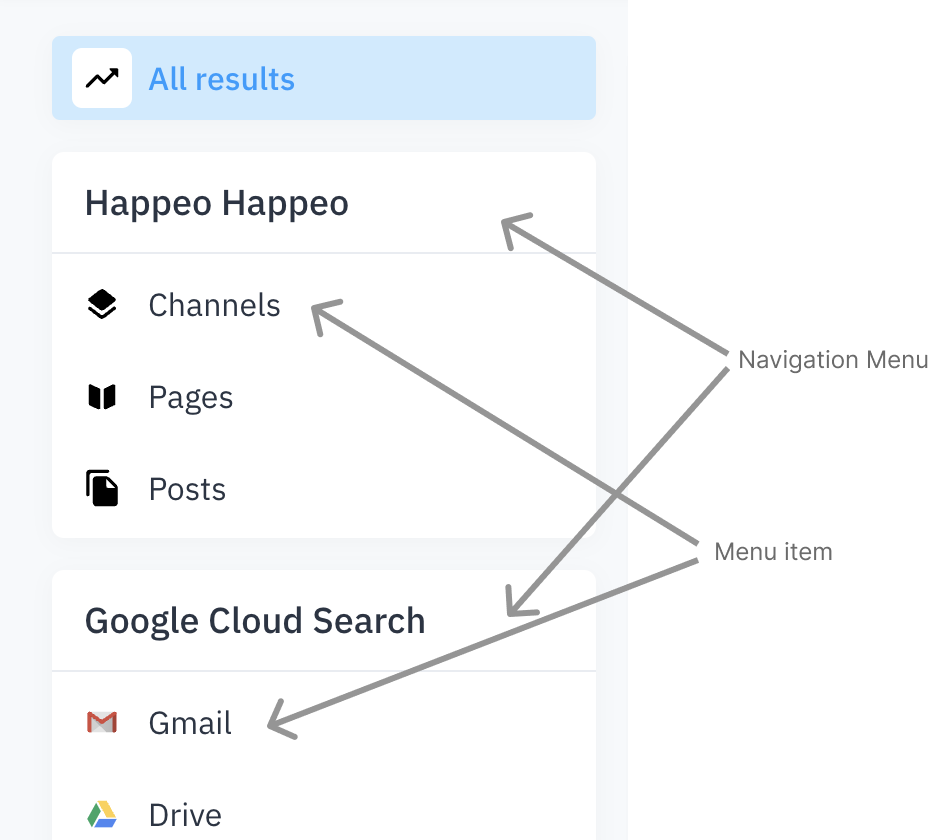
The settings endpoint is called when the Happeo Search UI is initializing, and search connector has a settings URL in place in App configuration. The endpoint should return a navigation items array. the UI will render a navigation menu based on array.
Request:
GET request is sent to the endpoint along with request, the Happeo token is passed in the authorization header. The endpoint must verify the token as explained in the authentication section and return the navigation items results.
Following is an example query:
GET /settings
Host: mysearch.example.com
authorization: Bearer <Happeo token here>
Response:
For Happeo UI to display navigation menu correctly on the screen, the response from the endpoints should follow a format as follows:
{
  "navigation":[ // Navigation menus
     {
        "id": string, // Id of the menu
        "displayName": string, // Menu display name
        "items":[ // Menu items
           {
              "id": string // Id of the menu item
              "name": string // Menu name will be used in the filter
              "displayName": string // Menu item's displayed label
              "icon": string // url to icon
           }
        ]
     },
  ]
}
Authentication
Authenticating Happeo: Happeo Token
Each request sent towards the search connector by Happeo is sent with a JWT (Json Web Token), let’s call it Happeo Token. The Happeo Token is signed by a secret shared between Happeo and the search connector. This secret is generated when the App is created (see the Create an App section). The search connector must store this secret securely.
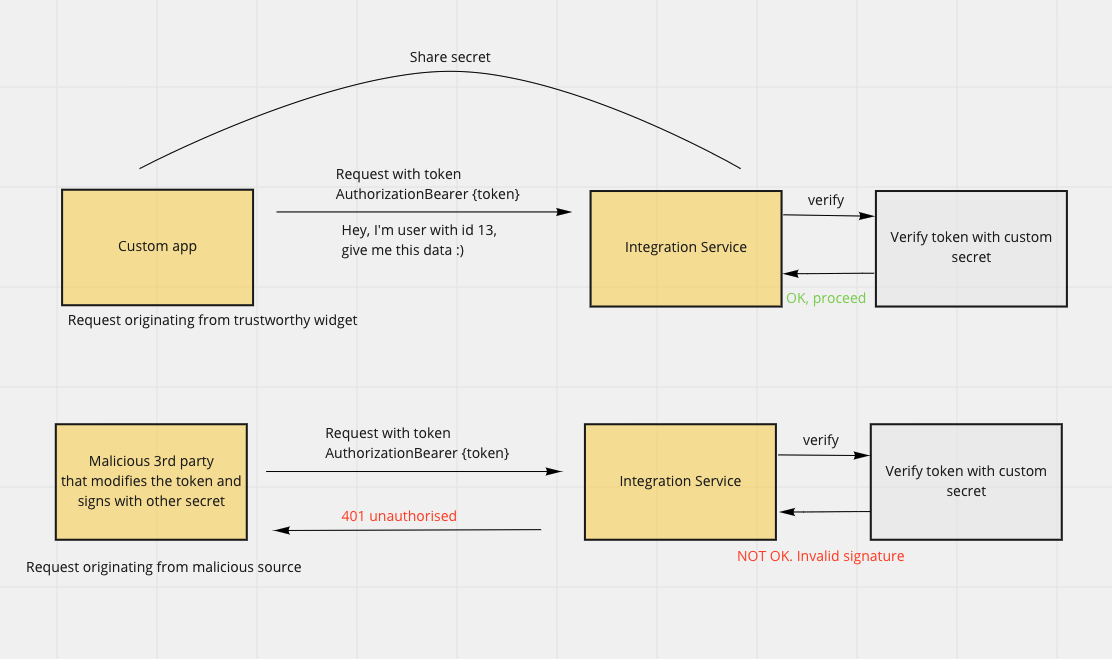
Diagram 1. Authorizing requests between Happeo and a Search connector (called Integration Service in the image) by using the Happeo Token.
The Happeo Token contains information about the user, organization and the issuer. Following is an example token:
{
  "user": {
    "id": "1214087623",
    "primaryEmail": "[email protected]"
  },
  "organisation": {
    "id": "16220160"
  },
  "iat": 1656882806,
  "exp": 1656886406,
  "iss": "com.happeo.custom-widget"
}
If the validation for Happeo Token fails, the search connector must respond with HTTP status code 401.
Authenticating the user
The information of the user who is logged in to Happeo and made the search request can be obtained from the Happeo Token in the request sent to the search connector.
In most cases the search connector needs to authenticate the user to the third party search API before making search requests. Nowadays, the most common method is to use OAuth or OpenID connect flow to obtain an access token for the user. For this purpose Happeo search can call the OAuth begin URL configured by the App if the user is not authenticated. For Happeo to know that the user is not authenticated, the search connector must respond with HTTP 401 for the suggestions and search requests if the user is not authenticated. In such case Happeo will start the OAuth flow by calling the OAuth begin URL, after which, it is up to the search connector to implement the OAuth/OIDC flows to obtain the user token. In the GET request to the OAuth Begin URL exposed by the search connector, Happeo also sends a one time token similar to the Happeo Token (signed by the same secret). The purpose of this one time token is to help the search connector identify the origin of the request. The search connector must make sure to store all the used tokens and verify if a token is reused in order to prevent replay attacks.
An example flow flow can look like the following:
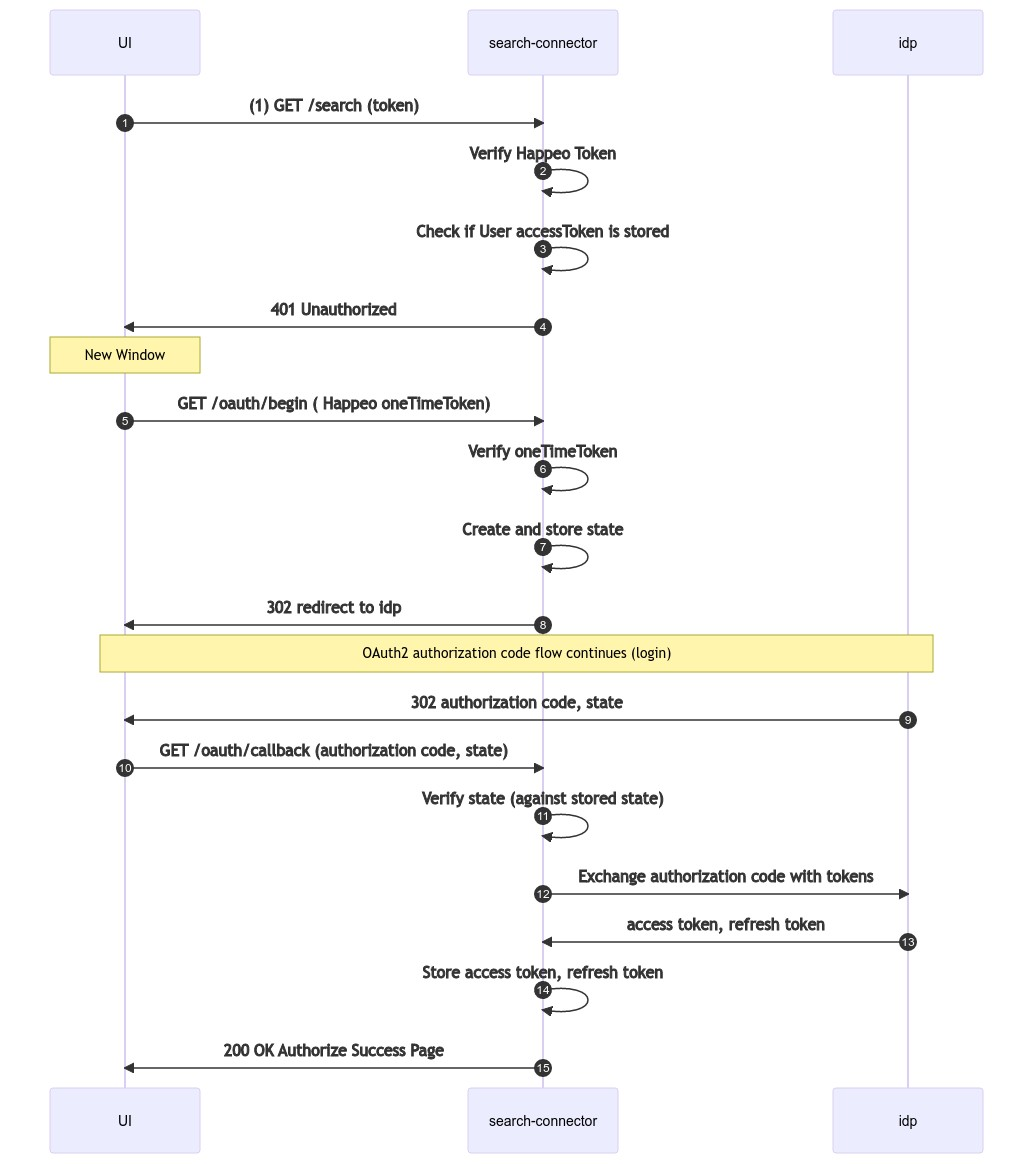
Once the authorization window is closed, Happeo search will resend the search request. However, this time, the search connector should have the user’s access token stored in its database.
Setup
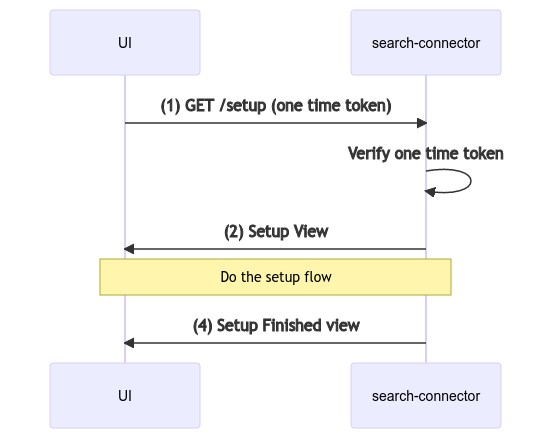
If you create a marketplace app, Happeo also allows configuring a “Setup URL” for the Search App. This setup URL is opened when the organization admin installs the search app through the marketplace and clicks the setup button there. Using the setup URL, the search connector can do any setup actions needed after installing the app. For example, our Zendesk Search connector asks for the target zendesk subdomain on the setup page. The search connector is responsible to implement the setup functionality, Happeo will only open the setup URl in a new window.
When the setup URL is opened in a new window, Happeo will send a one time token similar to the Happeo Token (signed by the same secret). The purpose of this one time token is to help the search connector identify the origin of the request. The search connector must make sure to store all the used tokens and verify if a token is reused in order to prevent replay attacks. Note that after the search connector is responsible to ensure that the calls received from the setup view are authenticated appropriately (Happeo will not send any tokens for the setup actions except for opening the setup url).
The following is the flow of information.
Conclusion
For any development support please reach out to Happeo support, we would be happy to assist.
Please make sure to maintain your service regularly and allow users to reach out to you for support.
Updated 6 months ago